GSAP Animations Documentation - QuantumLab Webflow Template
The QuantumLab Webflow template includes two custom GSAP animations that enhance your website's interactivity:
Marquee Scroll Animation - Creates a continuous scrolling logo strip that responds to user scroll direction and speed, and can pause on hover
Number Counter Animation - Animates numbers counting up when they enter the viewport
This documentation will guide you through using these animations without needing to understand the code itself.
Required GSAP Plugins
Before working with these animations, you need to enable the correct GSAP plugins in Webflow:
To enable GSAP plugins:
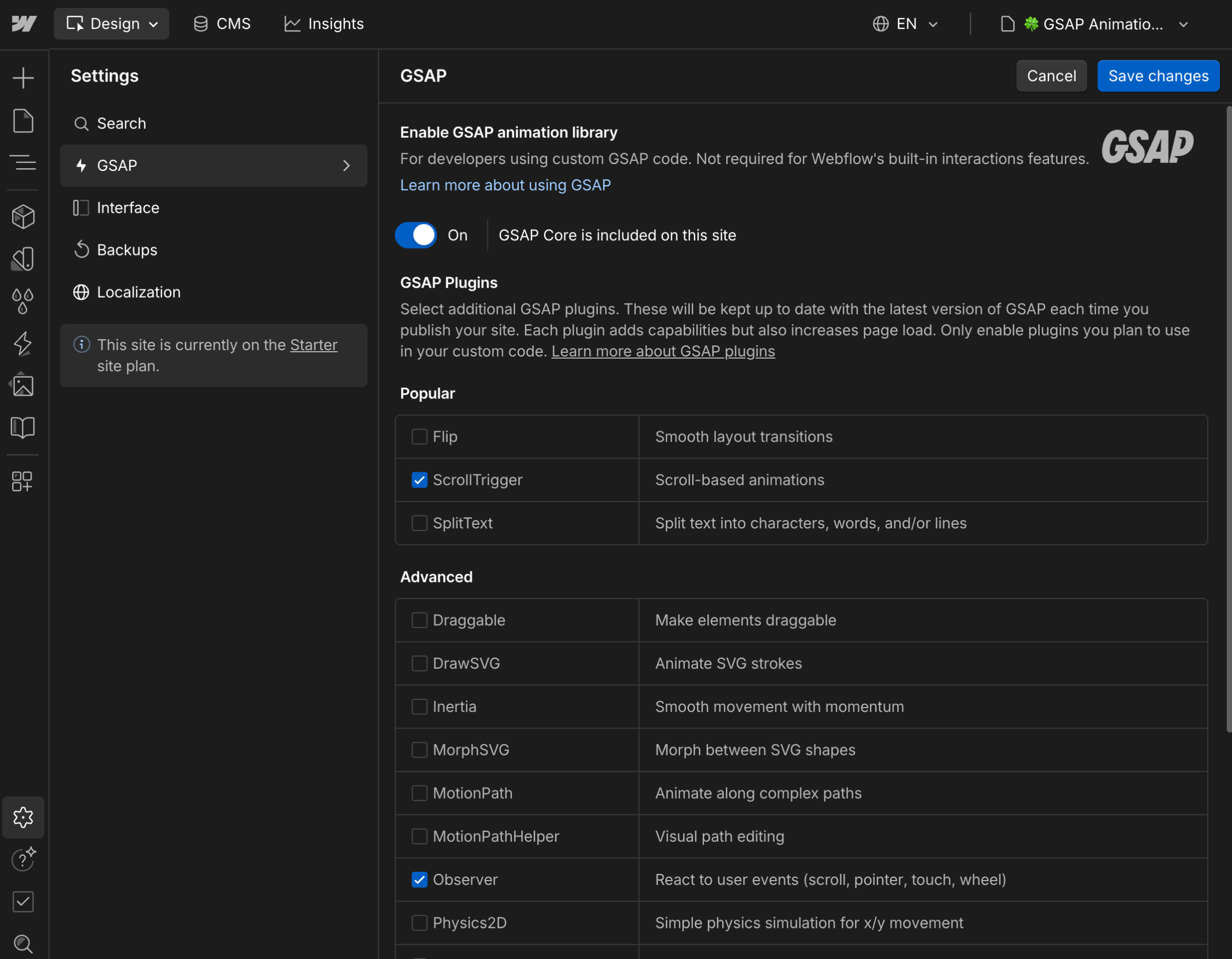
- Click on the Settings icon in the left sidebar
- Navigate to the GSAP section
- Toggle on Enable GSAP
- Select the required plugins:
For Marquee Scroll Animation:
- ScrollTrigger
- Observer
For Number Counter Animation:
- ScrollTrigger
Important Note: All of this has been previously set up in this template. Only enable the plugins you need. Adding unnecessary plugins can slow down your website by loading extra code.
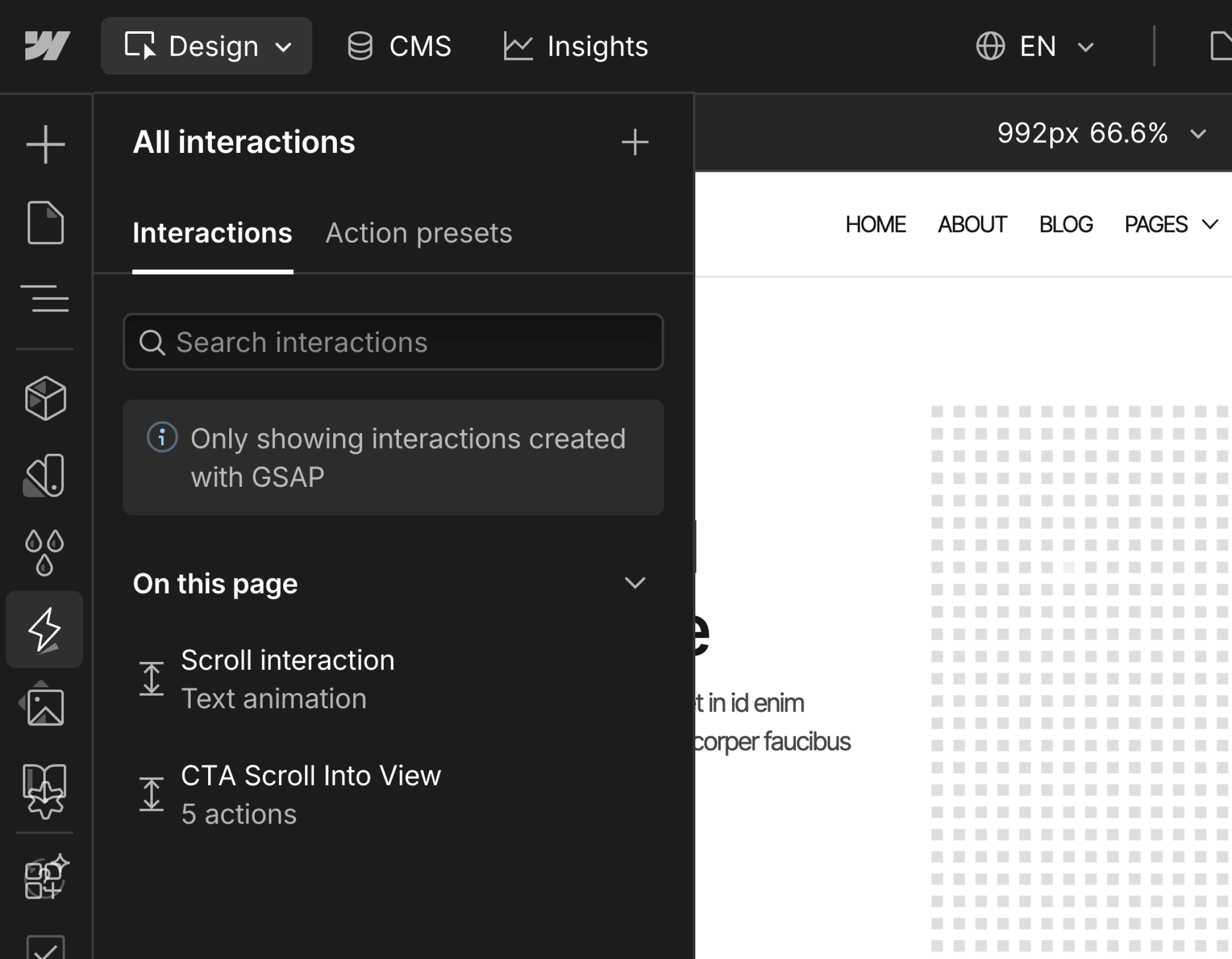
Important Note: The template includes GSAP interactions made with Webflow's native tools. Even if you don't enable the necessary plugins the animations made with custom code will still work since they use the same plugins as these interactions, however, if you delete these interactions and disable the plugins, the custom animations won't work.
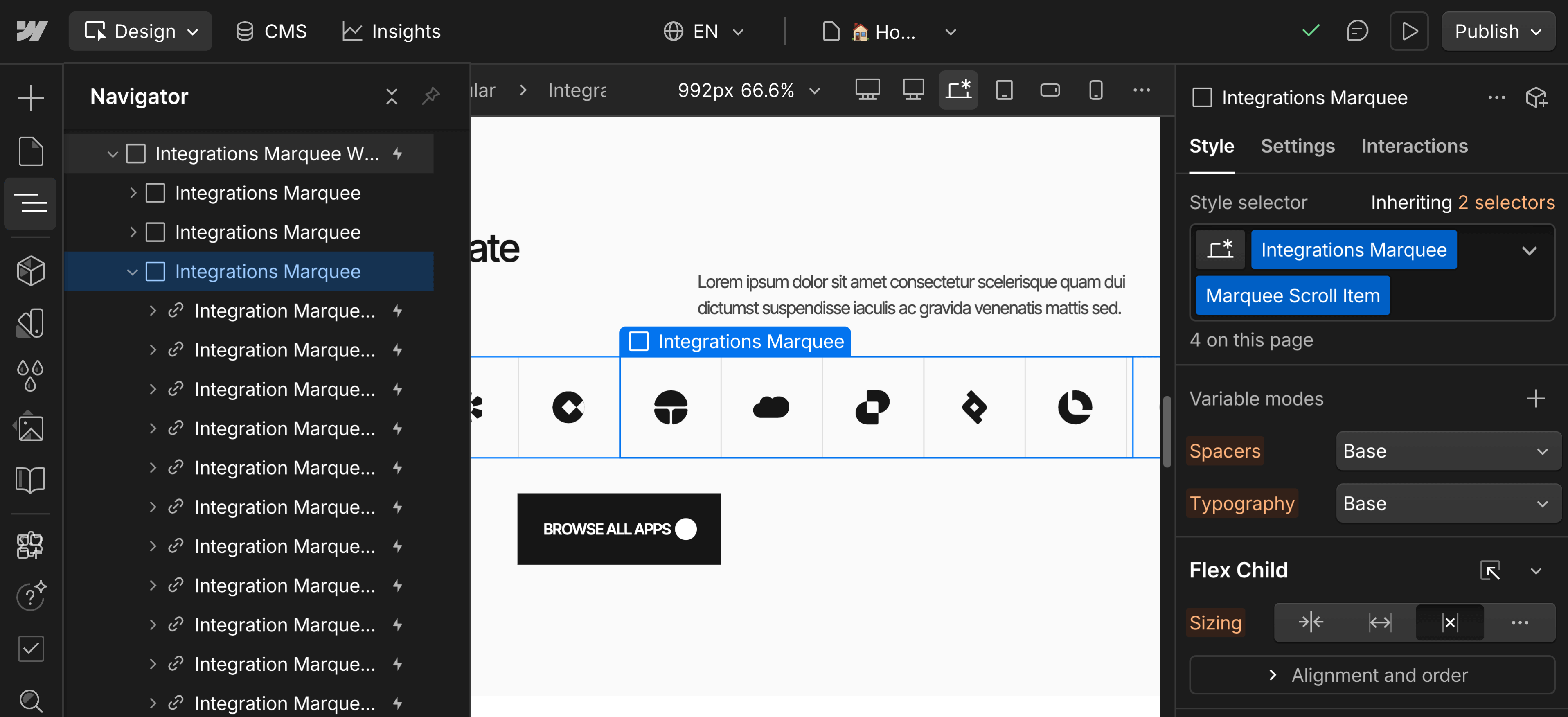
Marquee Scroll Item
What It Does
The marquee animation creates a continuously scrolling strip of logos (or any content) that:
- Scrolls automatically from right to left
- Speeds up or slows down based on your scroll speed
- Reverses direction when you scroll up - if you scroll down, it moves right to left; if you scroll up, it moves left to right
- Returns to normal speed when you stop scrolling
- Pauses on hover (optional)
How to Set It Up
Required Structure:
Your marquee section needs these elements in this order:
- A wrapper element
- Multiple child elements (at least 4-5 copies) with the class Marquee Scroll Item
- Each Marquee Scroll Item contains your logos or content
Step-by-Step Setup
- Select your marquee wrapper element
- Add your first logo strip element as a child, and give it its CSS properties
- Add the class Marquee Scroll Item to this element
- Duplicate this element 4-5 times (all siblings inside the wrapper)
- Make sure all duplicates have identical content
- Add the class Marquee Hover Stop to the wrapper if you want it to stop on hover (optional)
Why Multiple Copies?
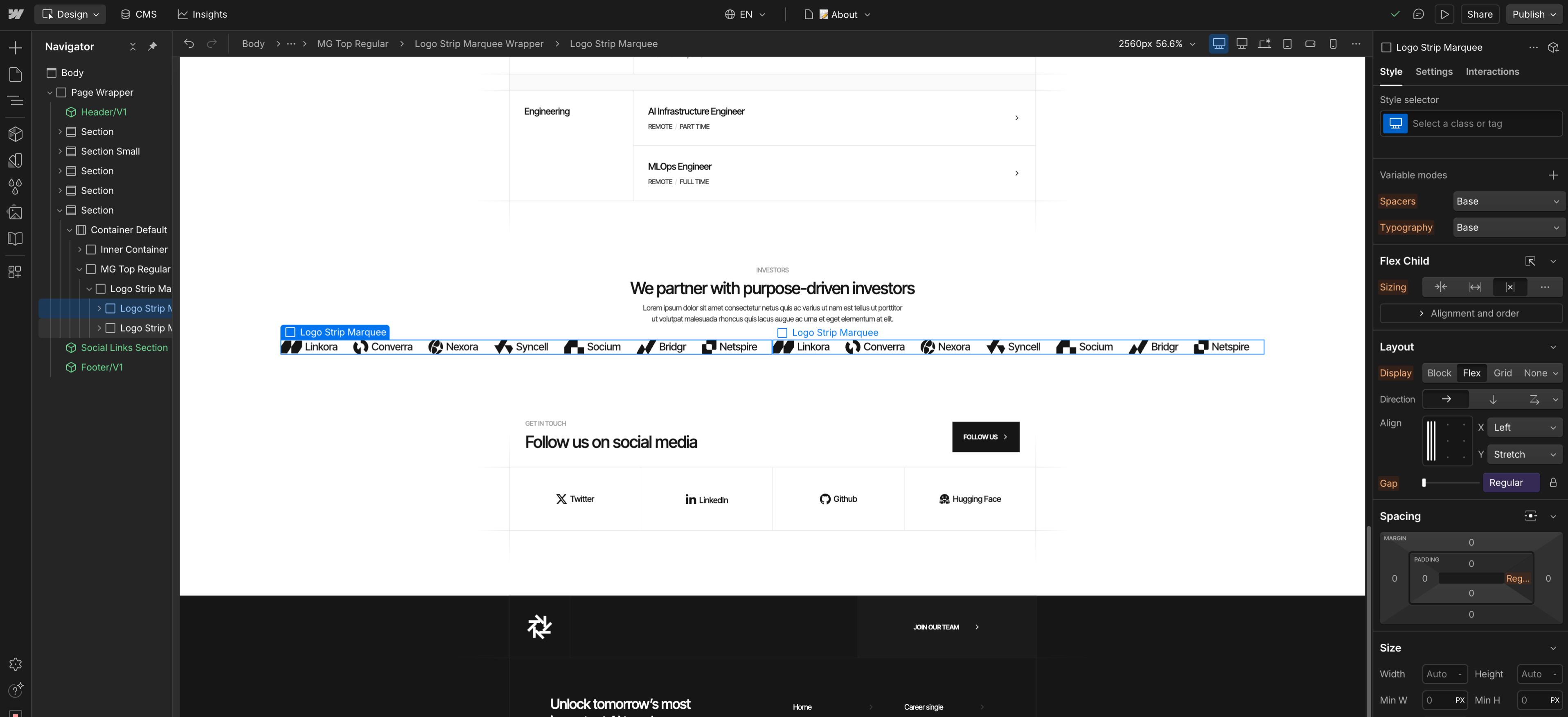
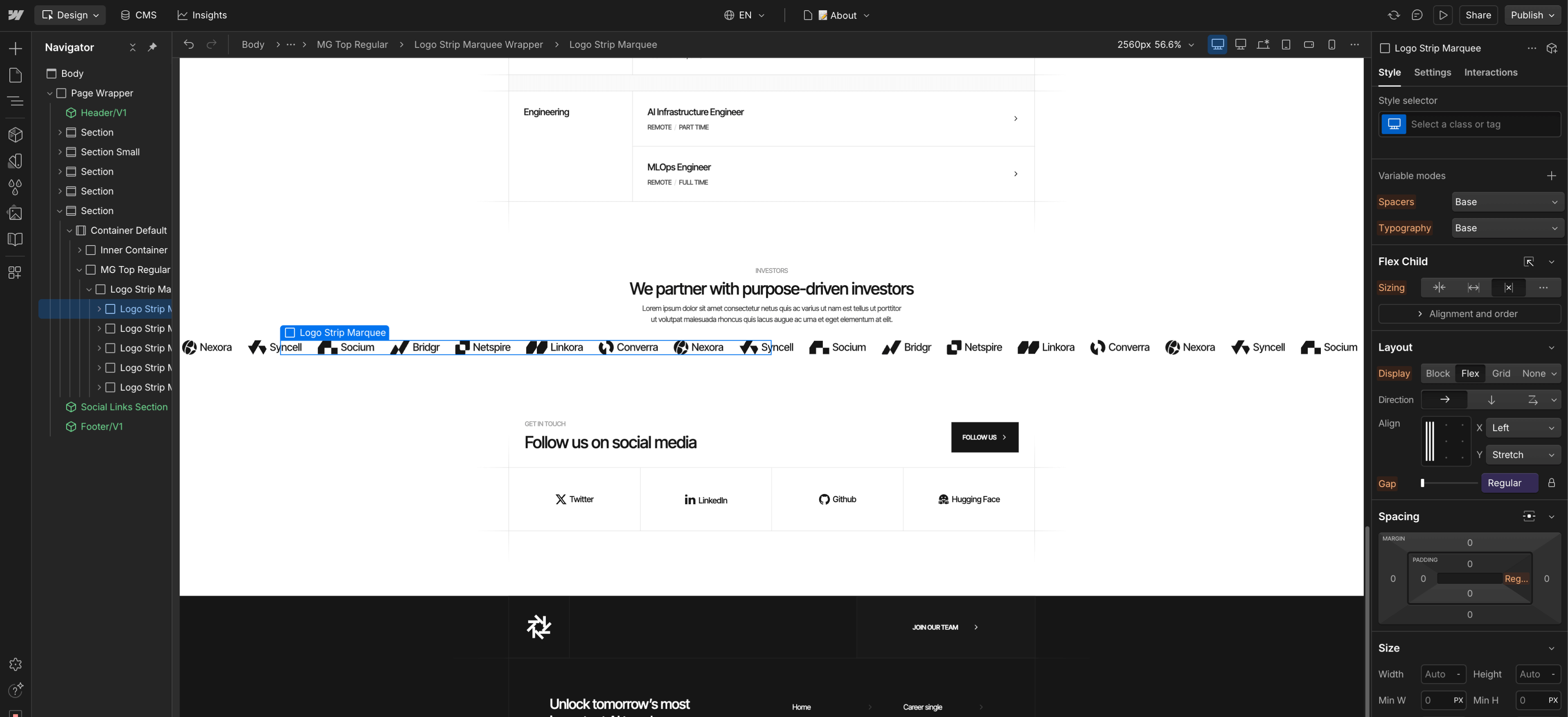
Because the animation can move in either direction (left or right depending on scroll), you need multiple copies of your logo strip to ensure smooth looping. And while the animation may work with 2 or 3 copies on Webflow's designer, on bigger screen sizes you would notice the gap caused by the lack of elements. Without enough copies, you'll see empty space to the sides on large screens, or when the animation reverses direction.
Recommended: Use at least 4-5 identical copies of your Marquee Scroll Item.
You can see this issue on the logo strip where the elements that are inside don't make the marquee long enough. With two copies it fills the width of standard screen sizes, but on larger screens like this you would see empty spaces to the left and right.
However, with 5 copies the marquee becomes long enough to fill even large screens.
Adjusting Speed
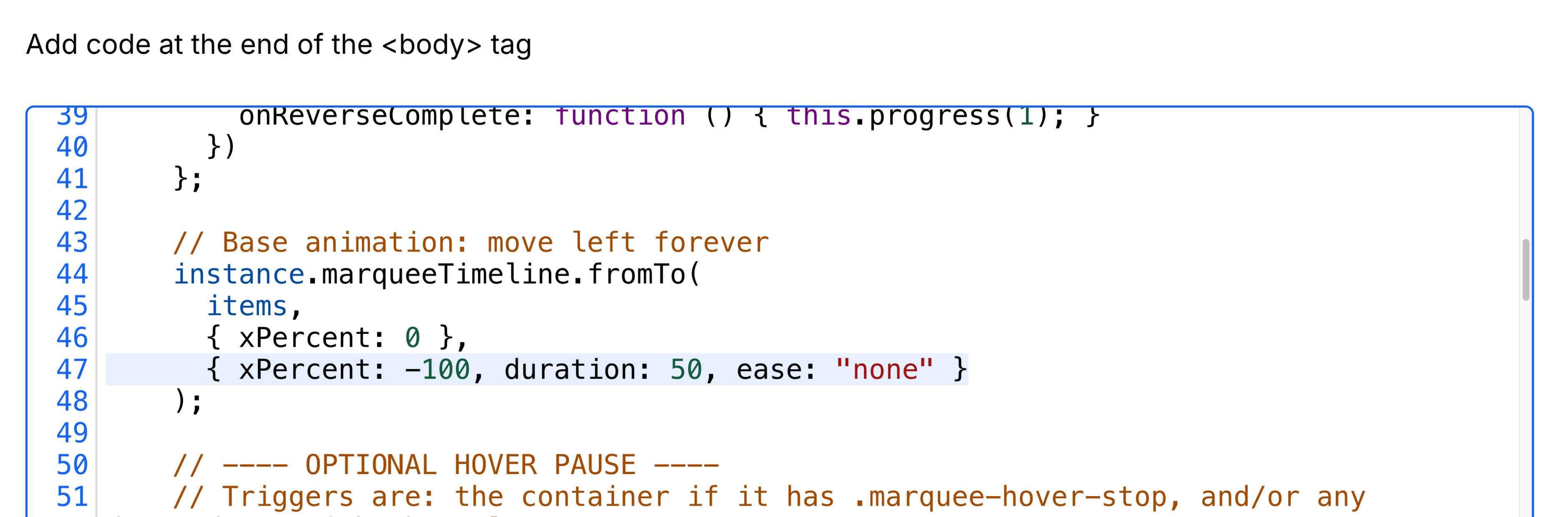
If you want to change the marquee speed, you'll need to modify the duration value in the custom code. The value is measured in seconds (eg. 50 gives it a duration of 50 seconds), and you need to look for this line:
Pause on hover
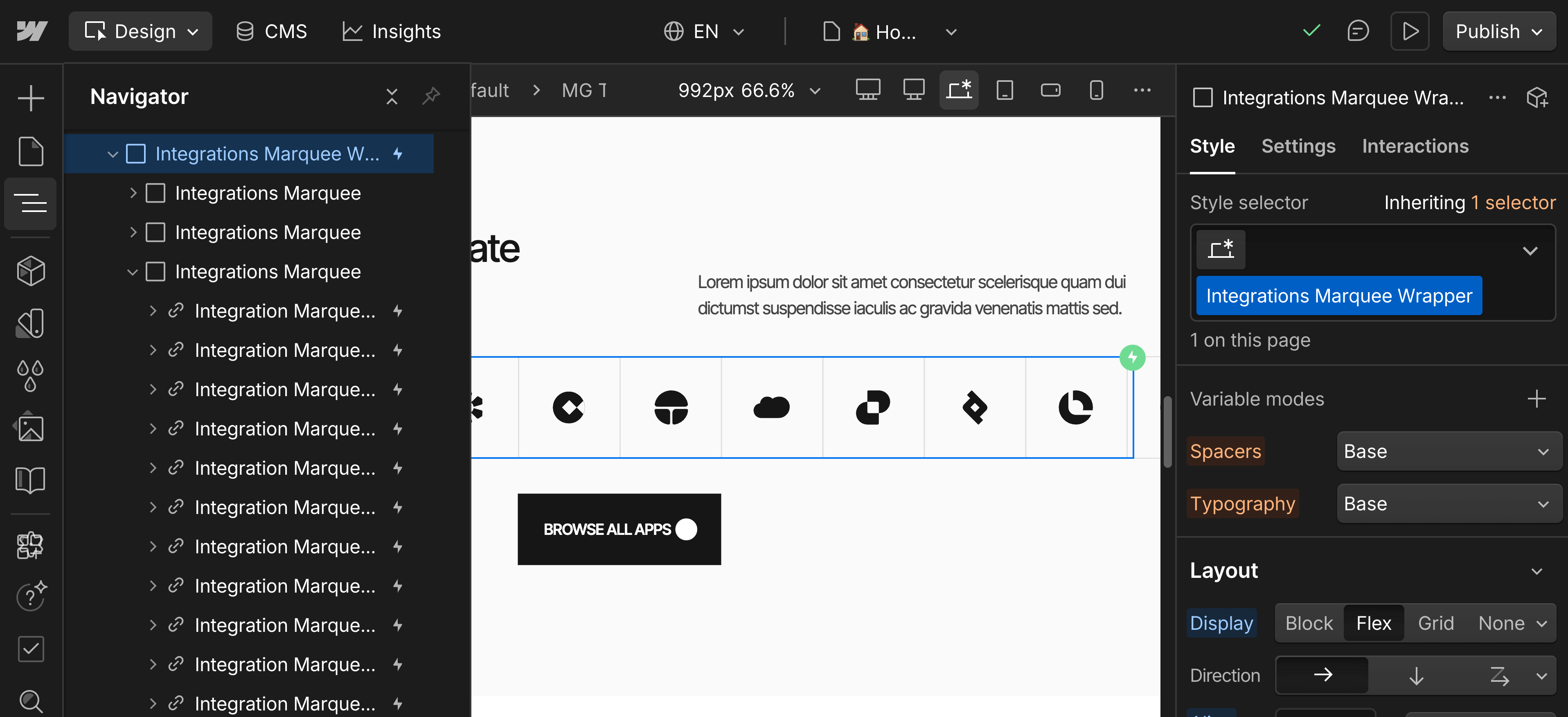
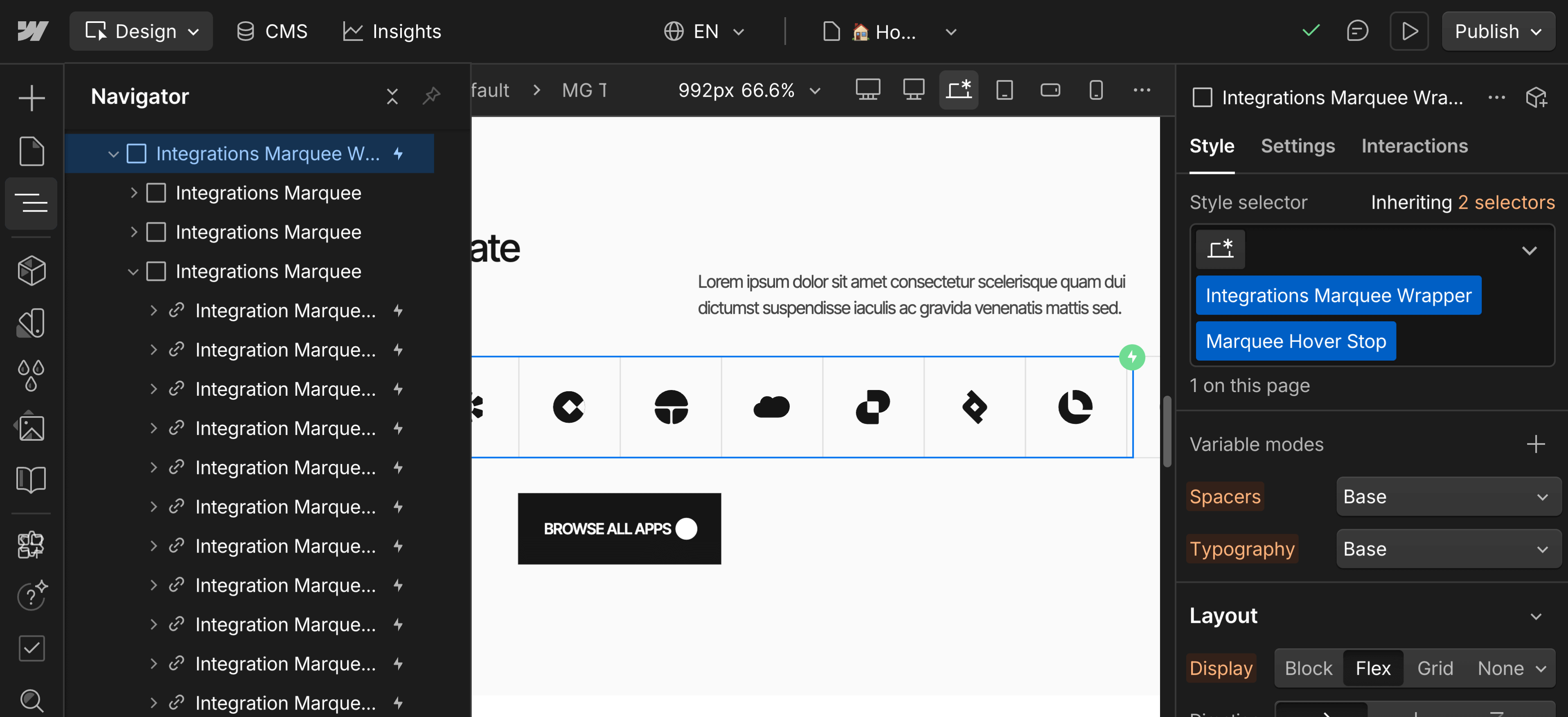
If you want the Marquee to stop scrolling when you hover an element, you just need to add the class Marquee Hover Stop on the Marquee's wrapper, or direct container.
This Marquee will function normally without stopping:
And this one will stop moving when you hover over any element inside of it:
Number Counter Animation
What It Does
The number counter animation makes numbers count up from 0 to a target value when they scroll into view. Perfect for statistics, achievements, or any numeric data.
How to Set It Up
Required Structure:
You need two things:
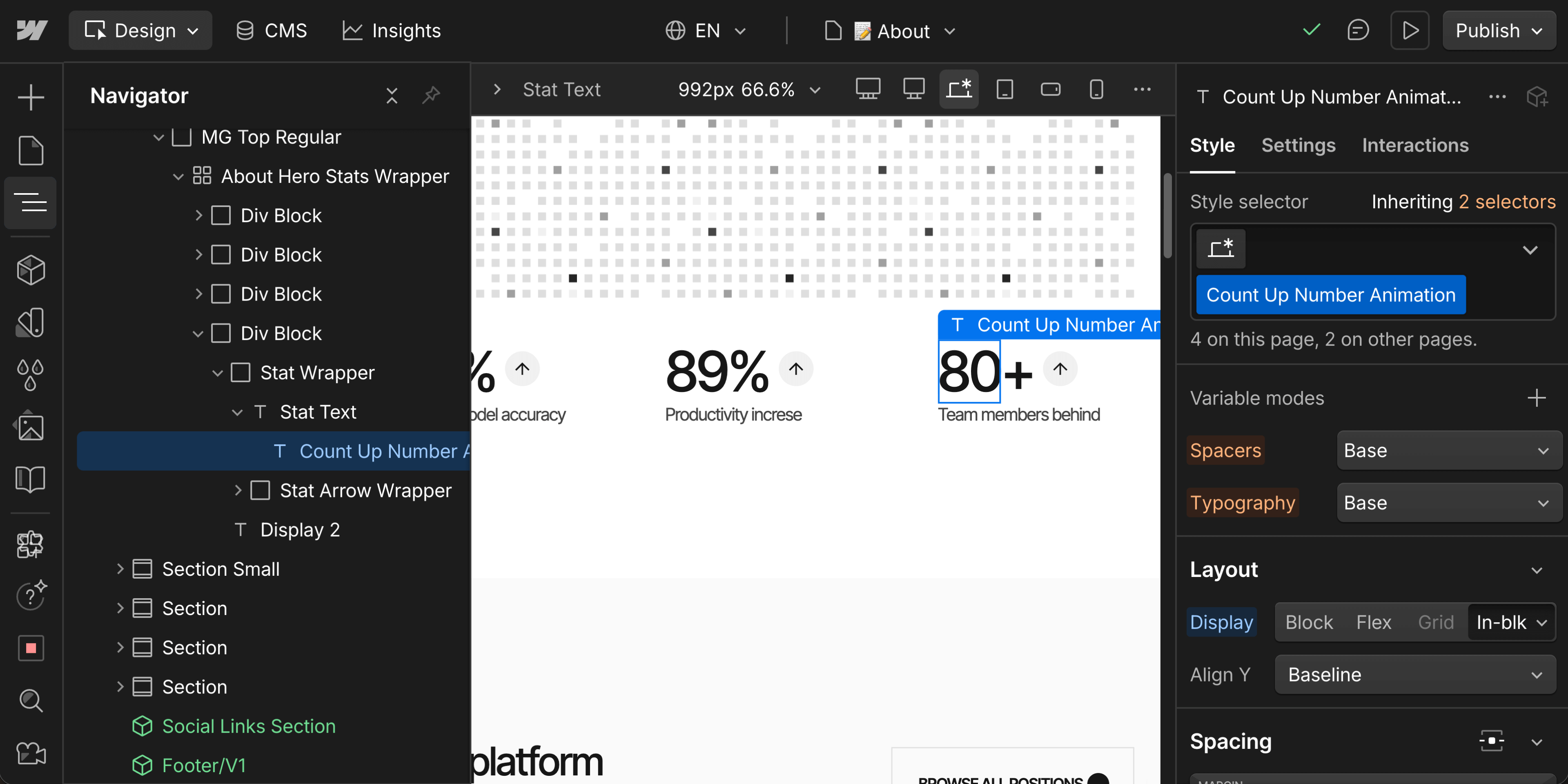
- A text element or span with the class Count Up Number Animation
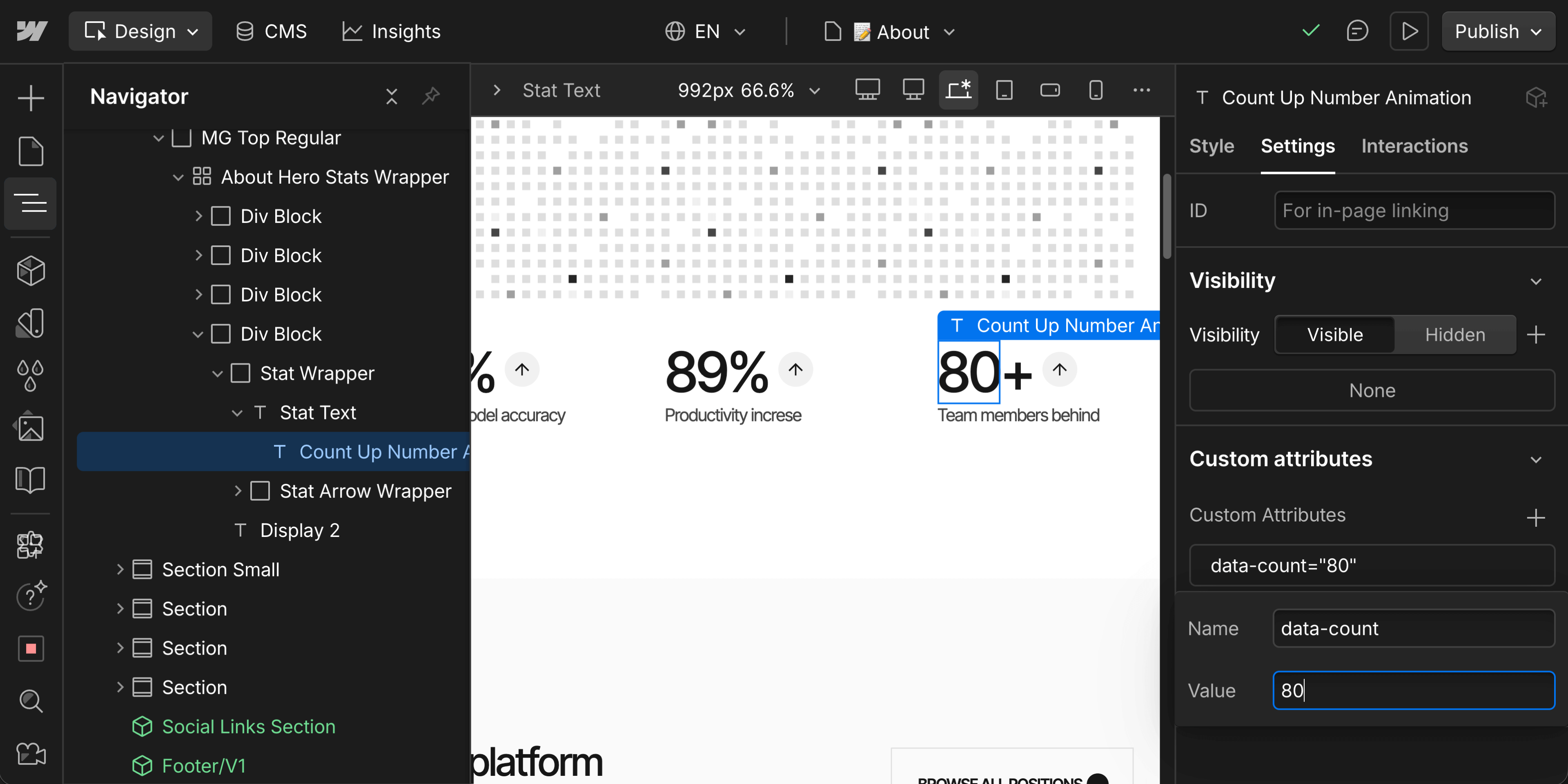
- A custom attribute on that same element: data-count with your target number
Step-by-Step Setup
- Select the text element that will display your number
- If you want only part of the text to animate (like "80+" where only "80" animates), wrap just the number portion in a Span
- Add the class Count Up Number Animation to the span (or text element)
- Click on the element's settings on the right sidebar and add a custom attribute:
- Name: data-count
- Value: your target number (e.g., 80)
Adjusting Speed
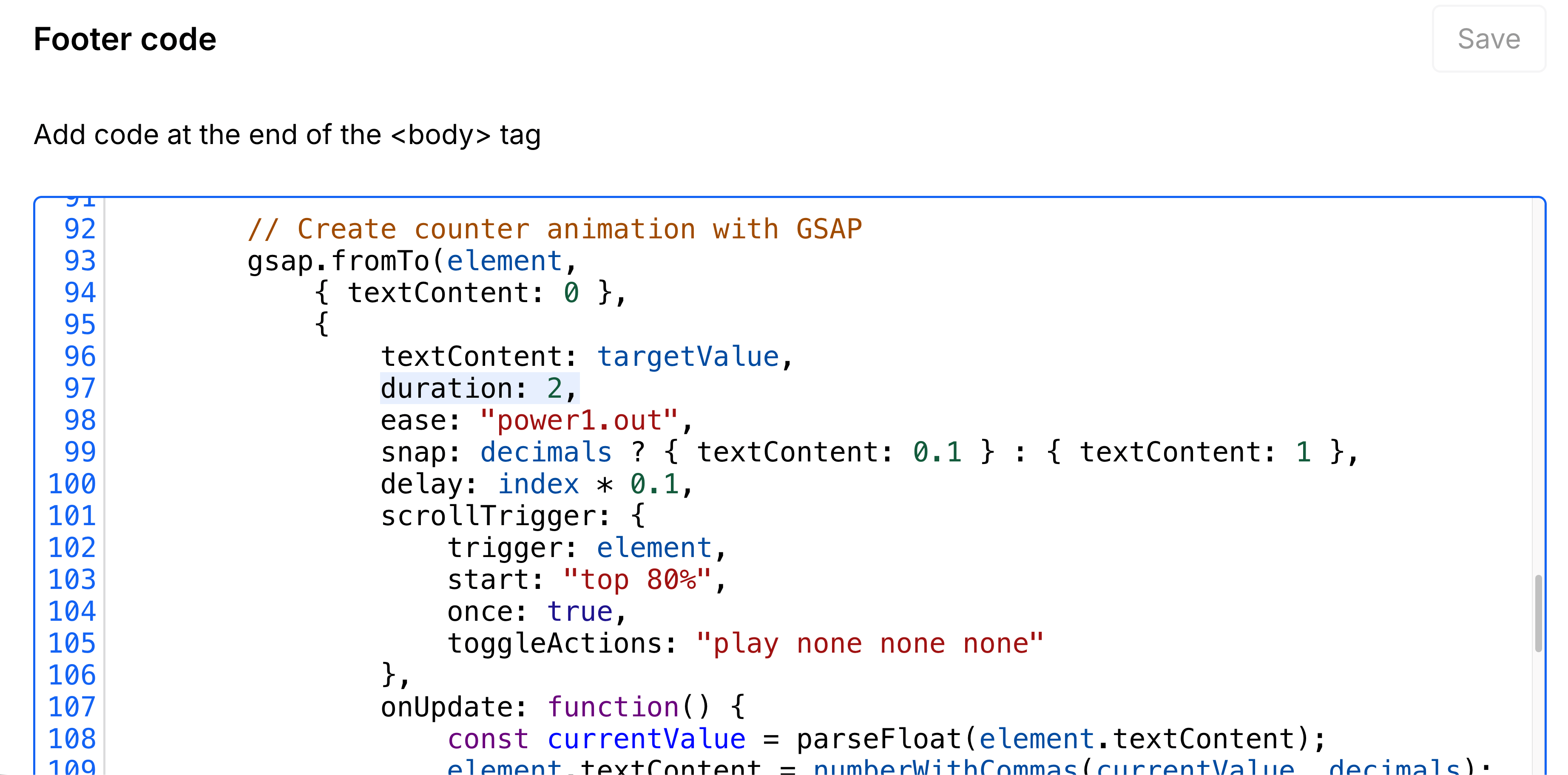
If you want to change the counter's speed, you'll need to modify the duration value in the custom code. The value is measured in seconds (eg. 2 gives it a duration of 2 seconds), you need to look for this line:
Number formatting
The counter automatically formats the values into thousands:
- data-count="5000" will be displayed as 5,000
- the data-count number shouldn't be separated by commas, the counter will do it automatically
Decimal Numbers
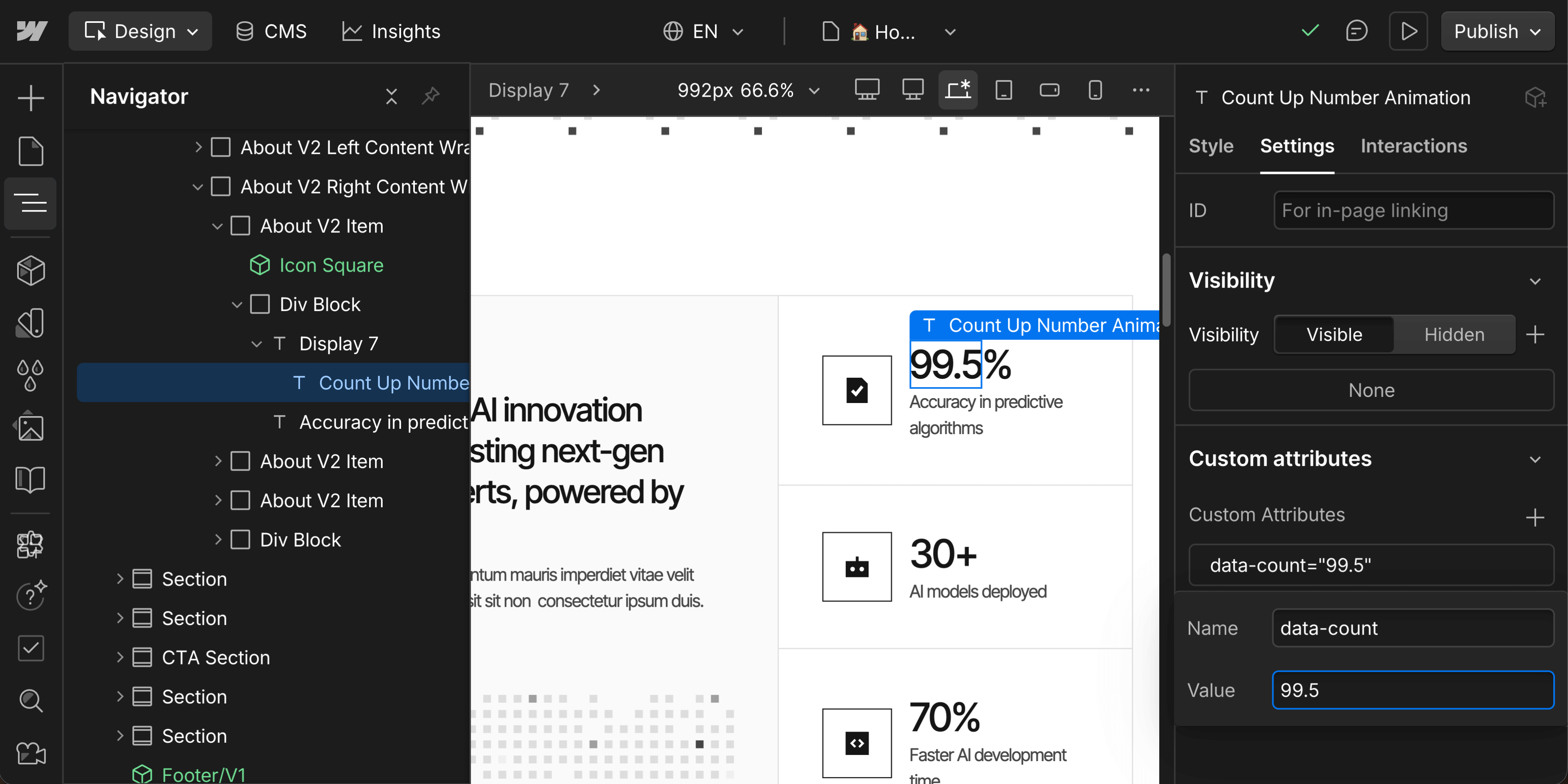
The counter automatically detects if your target number has decimals and it'll animate them too:
- data-count="5" will count whole numbers: 0, 1, 2, 3, 4, 5
- data-count="5.5" will count with one decimal: 0.0, 1.1, 2.2... 5.5
Multiple Counters
You can have multiple counters on the same page. Each counter:
- Animates independently when it enters the viewport
- Has a small staggered delay so they don't all start at once
- Only animates once (won't re-animate if you scroll back up)
Designer visualization
The number that you see in the designer will be overridden by the value set on the Custom Attribute, but you may still set the correct number on the designer for easier visualization.
Troubleshooting
Marquee Animation Not Working
Problem: The logos aren't scrolling
- Check: Do all child elements have the class Marquee Scroll Item?
- Check: Are ScrollTrigger and Observer plugins enabled in Settings > GSAP?
Problem: I see gaps or jumps in the animation
- Solution 1: Add more copies of your Marquee Scroll Item (aim for 4-5 identical copies)
- Solution 2: Make sure each element contains the exact same content in the same order
Problem: The animation is too fast or too slow
- Solution: Adjust the duration value in the custom code (line with
duration: 50)
Problem: The marquee doesn't stop on hover
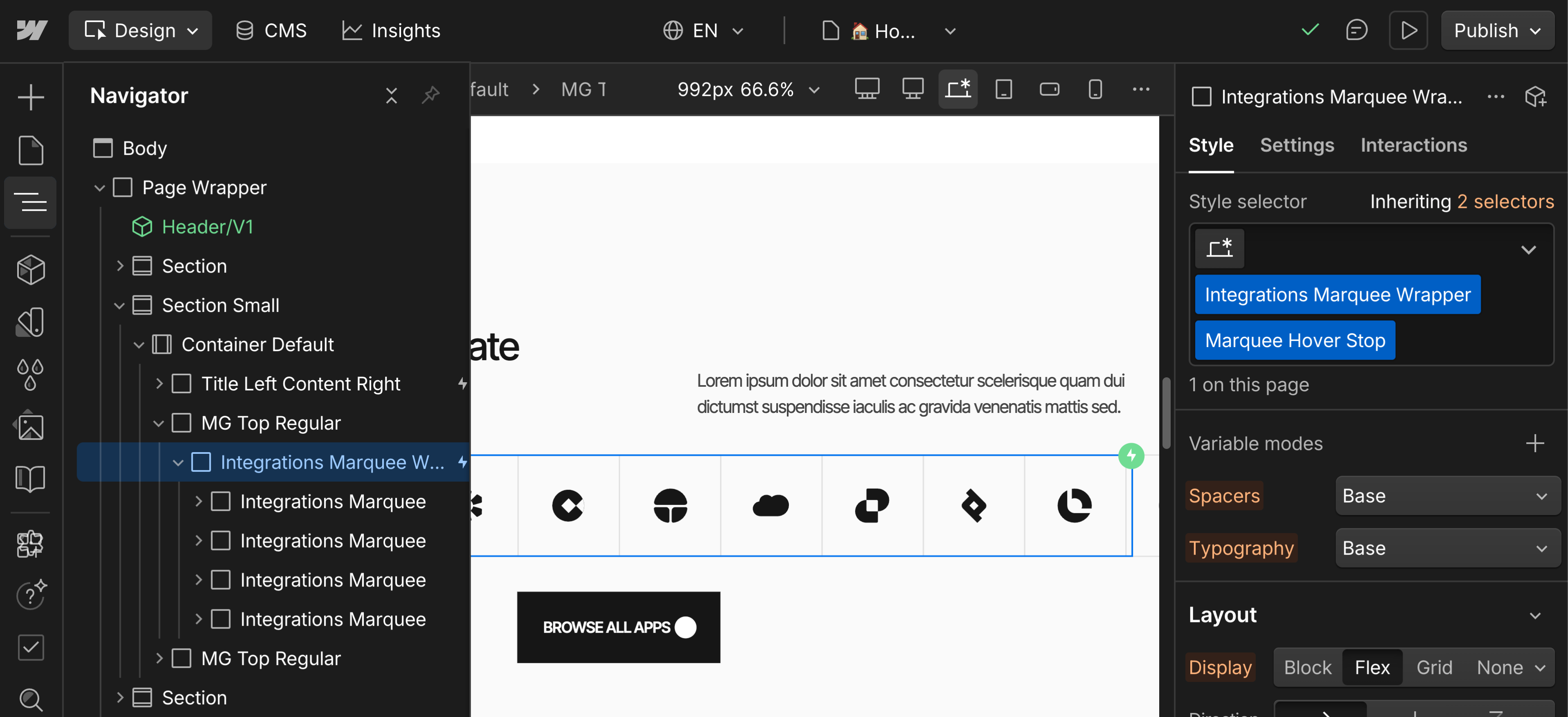
- Solution: Make sure you have the class Marquee Hover Stop on the marquee's direct container. The function looks for items with the class Marquee Scroll Item that are inside the item with the class Marquee Hover Stop. It won't work if the element is two or more levels inside it.
This structure won't stop on hover even though it has the Marquee Hover Stop class, because the element that has it isn't the direct container of the ones that have the class Marquee Scroll Item.
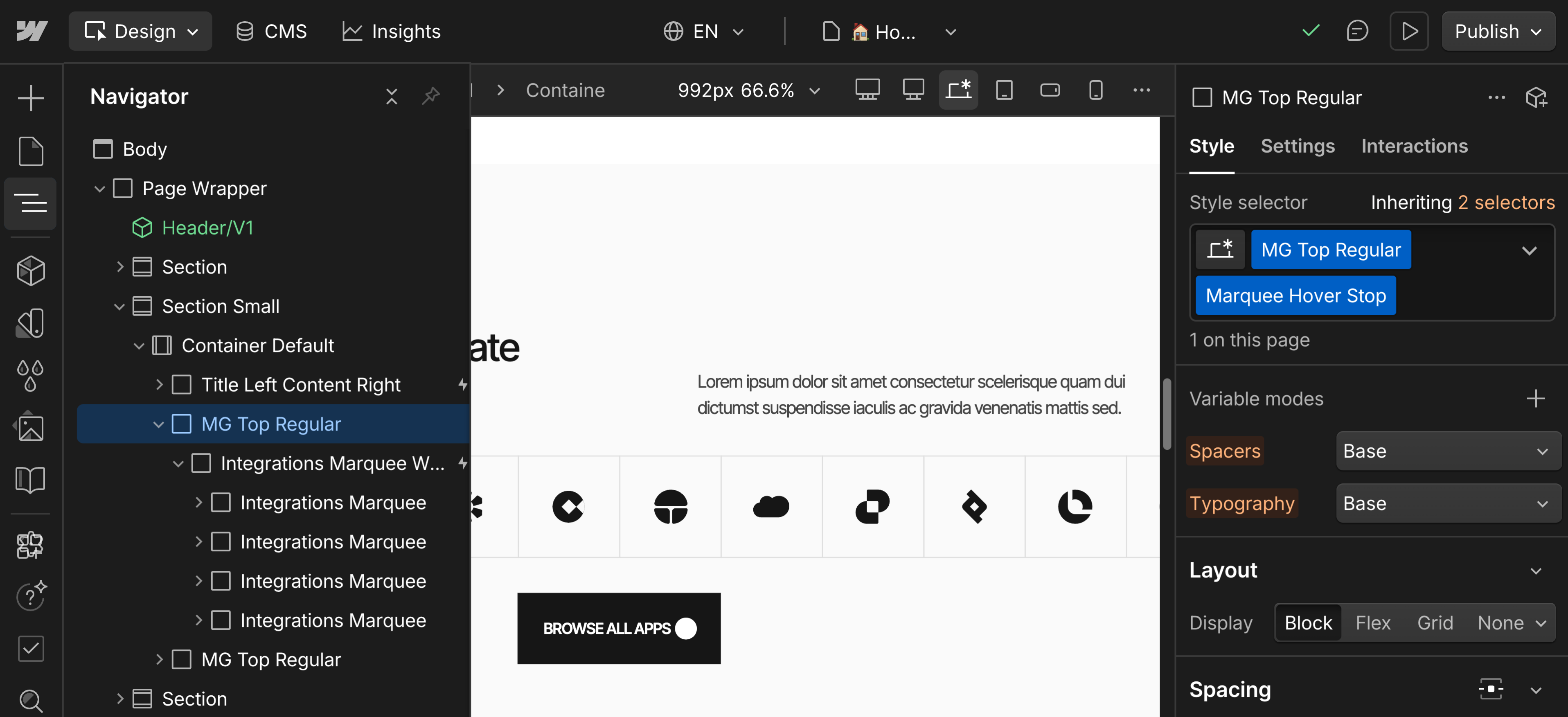
This structure will stop on hover because the element that has is is the direct container of the ones that have the class Marquee Scroll Item.
Counter Animation Not Working
Problem: Numbers don't count up
- Check: Does your element have the class Count Up Number Animation?
- Check: Did you add the custom attribute data-count with a number value?
- Check: Are ScrollTrigger and SplitText plugins enabled in Settings > GSAP?
Problem: Counter shows "0" or "NaN"
- Check: The data-count value should only contain numbers (and optionally one decimal point)
- Wrong: data-count="200+"
- Right: data-count="200" (add the "+" as regular text outside the counter element)
Problem: Multiple counters start at the same time
- This is expected behavior. The slight stagger is automatic but subtle.
Need support?
If you need help customizing these scripts or run into any issues not covered in this documentation, please email us at:
We're here to help you make the most of your Investflow Webflow template!